Touch typing for developers: brackets, symbols and code
Brackets, braces, pipes, backticks and quotes slow many people down when they type code. Where the keys are, how to practise them, and what typing practice cannot teach.
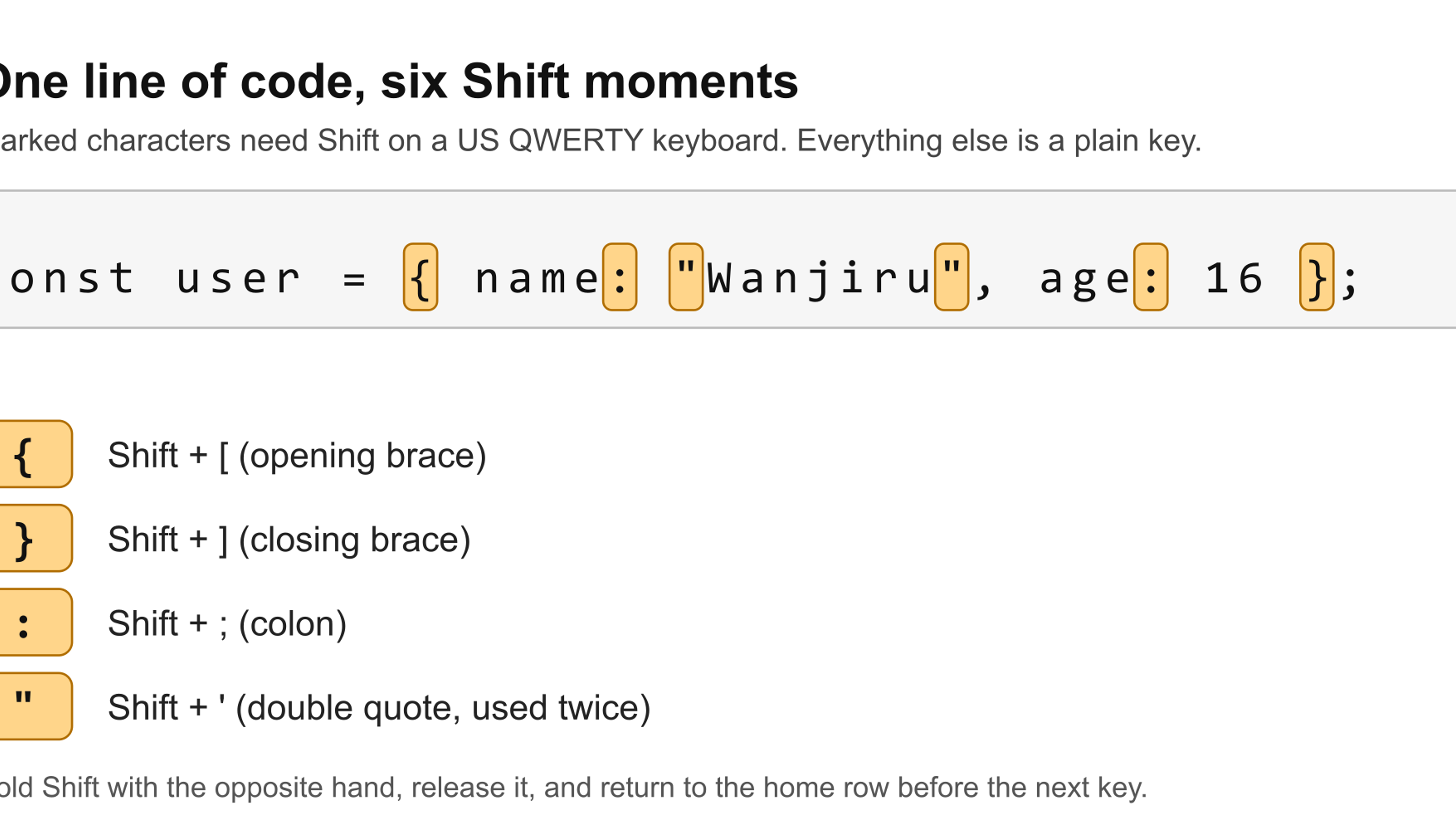
Typing code is typing with a lot of punctuation. Brackets, braces, pipes, backticks and quotes sit far from the home row, several need Shift, and a single missing one can stop a program running. If you are looking for ways of typing code faster, the honest starting point is to learn where those keys are and to practise them on purpose.
This post is part of our touch typing series. For the full learning path, start with the touch typing guide.
This post covers the keys, a way to practise them, and how our touch typing app, Tutype, plans to help. Tutype is in development and has not launched, and it is our own product, so we describe design, not results. We also say plainly what typing practice cannot do.
- Most programming symbols are Shift characters on the right side of a US keyboard, so a steady Shift habit matters more than raw finger speed.
- Tutype's Numbers & Symbols course and Coding Basics track are designed to drill these keys, with real snippets in Python, JavaScript, HTML, CSS, SQL and the shell.
- This is typing practice, not a programming course. It will not teach you what the code means. For building real software, see our web development service.
Where the symbol keys are
On a US QWERTY keyboard, the symbols code uses most are clustered at the right edge and across the number row. The backtick is left of 1, parentheses are Shift + 9 and Shift + 0, square brackets sit right of P, and the same keys with Shift give curly braces. The backslash is above Enter, and the pipe is Shift + backslash. Angle brackets are Shift + comma and Shift + full stop, and colon and double quote are Shift + semicolon and Shift + apostrophe.

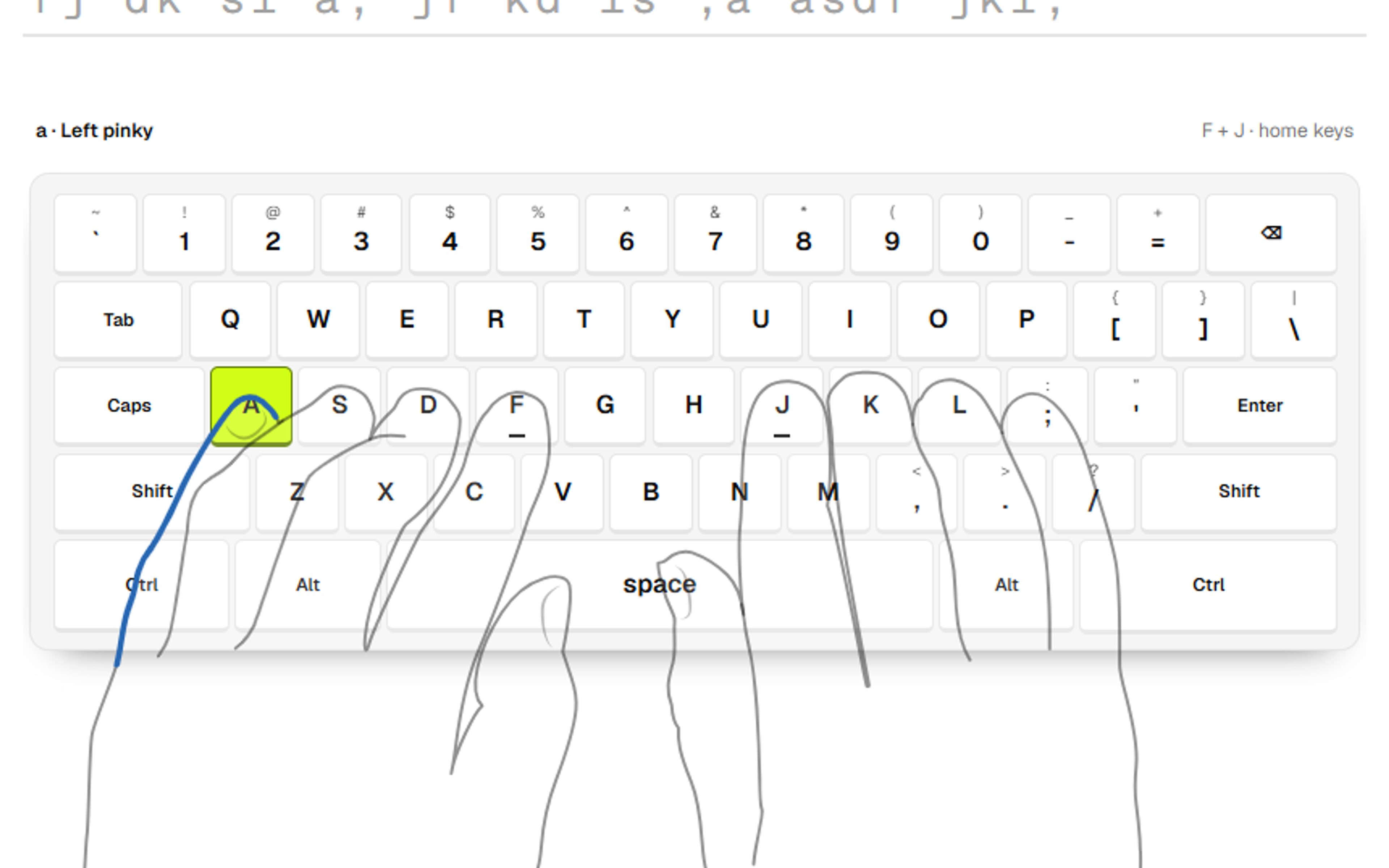
The rule that makes this manageable is the same one that makes letters manageable: each key is pressed by one finger and the hand returns home. Shift works the same way. Press the Shift key with the hand opposite the key you want, so a symbol on the right side takes the left Shift. The Aalto University study we cite in our post on whether touch typing is worth learning found that faster typists used the same finger for the same letter. That is one small study of English typing, not of code, but the habit it points at, a fixed finger for each key, is the one worth building for symbols too.

What makes code awkward to type
Symbols are only part of the problem. Code has a different rhythm from prose. Brackets, parentheses and quote marks come in pairs, so you have to remember to close what you opened. Words are often short names with no spaces, such as camel case or snake_case, and the symbols arrive every few characters. Many code editors insert the closing bracket or quote for you, which is helpful but changes what your fingers have to do, so it is worth practising both with and without that help.
How to practise symbols
Do it in short sessions, as for letters. Pick one cluster, such as the brackets, and type it until the Shift movement feels steady, then move on. Put accuracy before speed: a wrong bracket costs more in code than a wrong letter in an email. When you type a pair, type the opener, then its closer, then fill the middle. Keep your eyes on the screen and name the Shift hand in your head until it becomes automatic. If you keep missing the same symbol, give that key its own short drill.
What Tutype is designed to teach
Tutype has two parts that matter here. The first is the Numbers & Symbols course inside Keystone, our English course. In order, it teaches the numbers 1 to 5, then 6 to 0 and the hyphen, numbers inside ordinary text, the symbols ! @ # $ %, then ^ & * ( ) with underscore, plus and equals, then the square brackets and the tilde, then a Code Symbols lesson for { } < > \ | and the backtick, and finally a review of the whole number row. As with every lesson, it only shows keys you have already been taught.
| Option | Good fit | Trade-off |
|---|---|---|
| Numbers & Symbols (inside Keystone) | Teaches the keys: numbers, shifted symbols, brackets, then braces, angle brackets, backslash, pipe and backtick | For people who are still learning the keyboard. It does not teach programming. |
| Coding Basics (a separate track, English) | Practises real snippets: parentheses, brackets and braces, operators, quotes, variables, loops, functions, and HTML, CSS, SQL and shell commands | For people who already know the keyboard. It assumes you have the keys, and does not teach them. |
Coding Basics has three chapters. Symbols & Operators covers brackets and braces, then math operators, comparisons and logic, and arrows and pipes. Variables & Control covers variables, strings, if and else, loops, and lists and dictionaries, in Python and JavaScript. Functions & the Web covers functions with parameters, then HTML, CSS, SQL and the shell. The snippets are short and are meant to be typed exactly as written.
What this is, and what it is not
Be clear about the limits. The snippets in Coding Basics are practice for the fingers. They come from several languages and are not a course in any of them. Typing a loop does not teach you how a loop works. Being able to type braces quickly helps a beginner who already knows what they are doing, but it is no substitute for learning to program, and we have no results to show that it speeds anyone up.
Coding Basics is also in English only. A Kiswahili version is not built, though our Kiswahili course, covered in typing in Kiswahili with Ustadi, already includes a lesson on code symbols.
The honest next step
If you want to learn to build software, practise typing alongside real projects, not instead of them. Our web development service is for people and organisations that need a website or web app built. If you would like to hear when Tutype launches, get in touch with us. For a classroom view of the same app, see our guide to teaching typing in a school.
How we prepared this guide
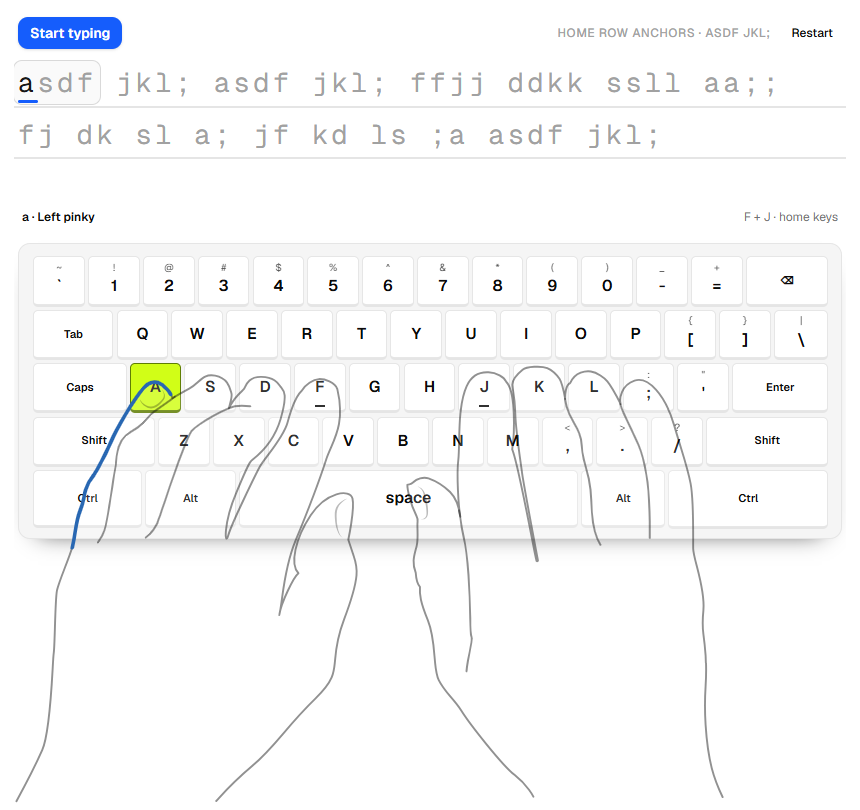
Written by Alphonix about Tutype, our own product, so this is not an independent comparison. Tutype is in development and has not launched. The descriptions of its Numbers & Symbols course and its Coding Basics track come from reading their lesson definitions and design notes in our repository, and describe how they are designed, not tested outcomes. The key positions are for a US QWERTY keyboard and were checked against the layout the app teaches. We cite no learner results and no studies on typing code. The diagrams and cover were drawn by Alphonix; the one screenshot is from our development build.
Facts reviewed