Why learn touch typing: what it does and does not give you
Self-taught typists can be just as fast as touch typists, so why learn? Here is what a university study found and what touch typing does give you.
Touch typing means typing without looking at the keyboard, with each finger responsible for its own keys. Plenty of people never learn it and still type quickly, so a fair question is whether it is worth the effort. The honest answer is: it depends on what you want from it, and a university study gives a more interesting answer than 'always'.
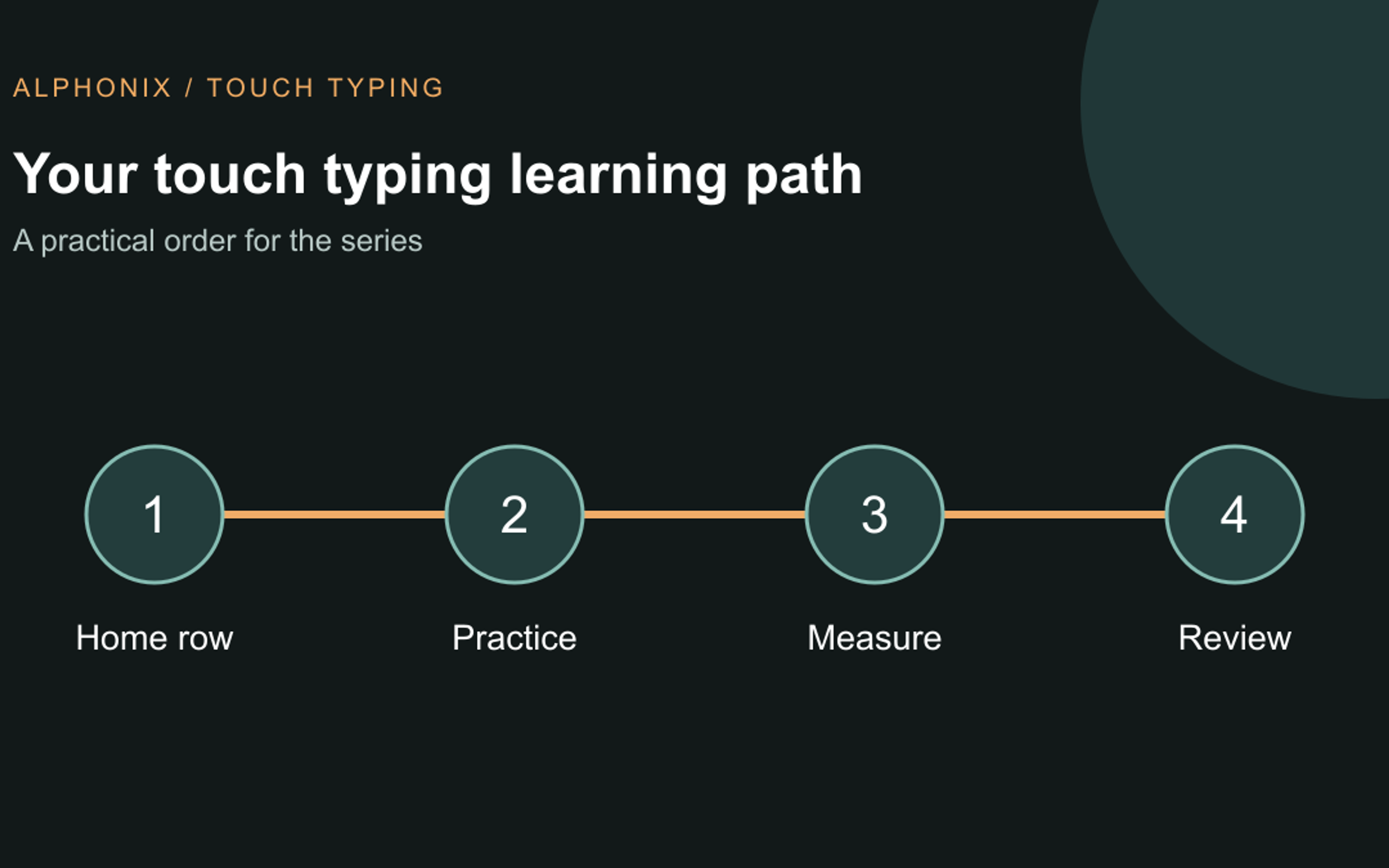
This post is part of our touch typing series. For the full learning path, start with the touch typing guide.
This guide covers what the research found, where touch typing genuinely helps, how the home row and finger zones work, and a short routine for learning. We are also building a touch typing app called Tutype, so we say clearly where we are describing our own plans instead of proven results.
- A study of 30 typists found that people who took a typing course were not faster on average than self-taught typists who used about six fingers.
- What did separate faster typists was a stable hand position and always using the same finger for the same letter, so consistency matters more than finger count.
- Touch typists look down far less, which helps when you edit, copy or code. Learn it for that, practise in short daily sessions, and put accuracy before speed.
Do you need touch typing to type fast?
Not necessarily. In 2016, researchers at Aalto University in Finland studied 30 people across a broad range of ages and skills. They found that participants who had taken a touch typing course reached a similar average speed and accuracy to those who had taught themselves and used around six fingers.
The speed difference came from somewhere else. Faster typists kept their hands in a fixed position rather than moving them around the keyboard, and they consistently used the same finger for the same letter. The study also noted that untrained typists spent roughly twice as much time looking at their fingers instead of the screen.
This is one small study, and it measured speed in a lab. It does not say that learning technique is a waste of time. It suggests that the habits behind touch typing, a steady home position and a fixed finger for each key, are what do the work.
Where touch typing still helps
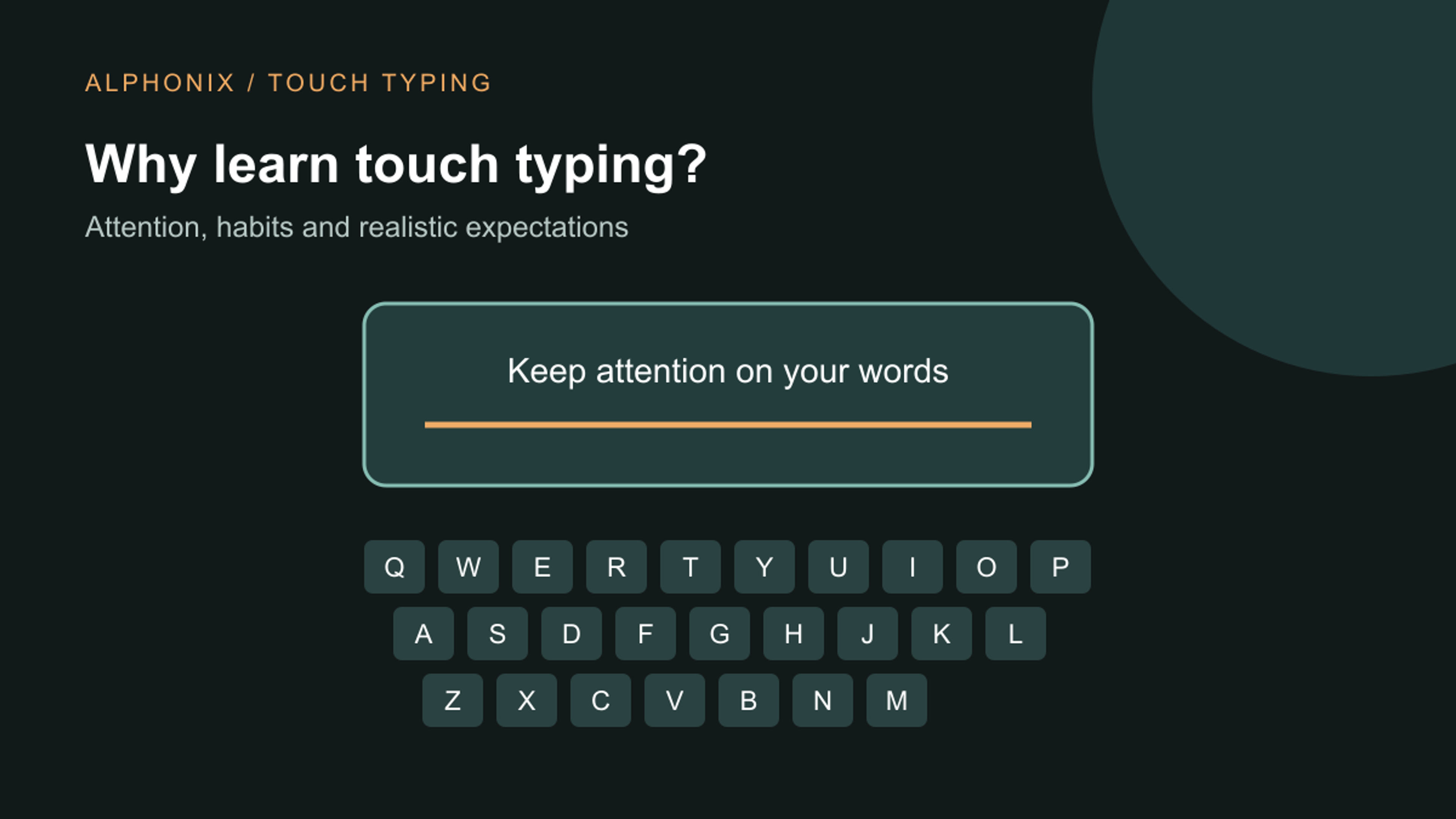
If speed is not guaranteed, the practical benefit is attention. When you do not need to look at the keys, your eyes stay on the screen or on the page you are copying from. You notice mistakes as they happen, you keep your place when you transcribe, and you lose less of your train of thought when you edit or write code.
A consistent finger map also means you are not inventing a new route to the same key every time. That is the same consistency the Aalto study linked to faster typing, but written down so you can learn it deliberately.
The home row and finger zones
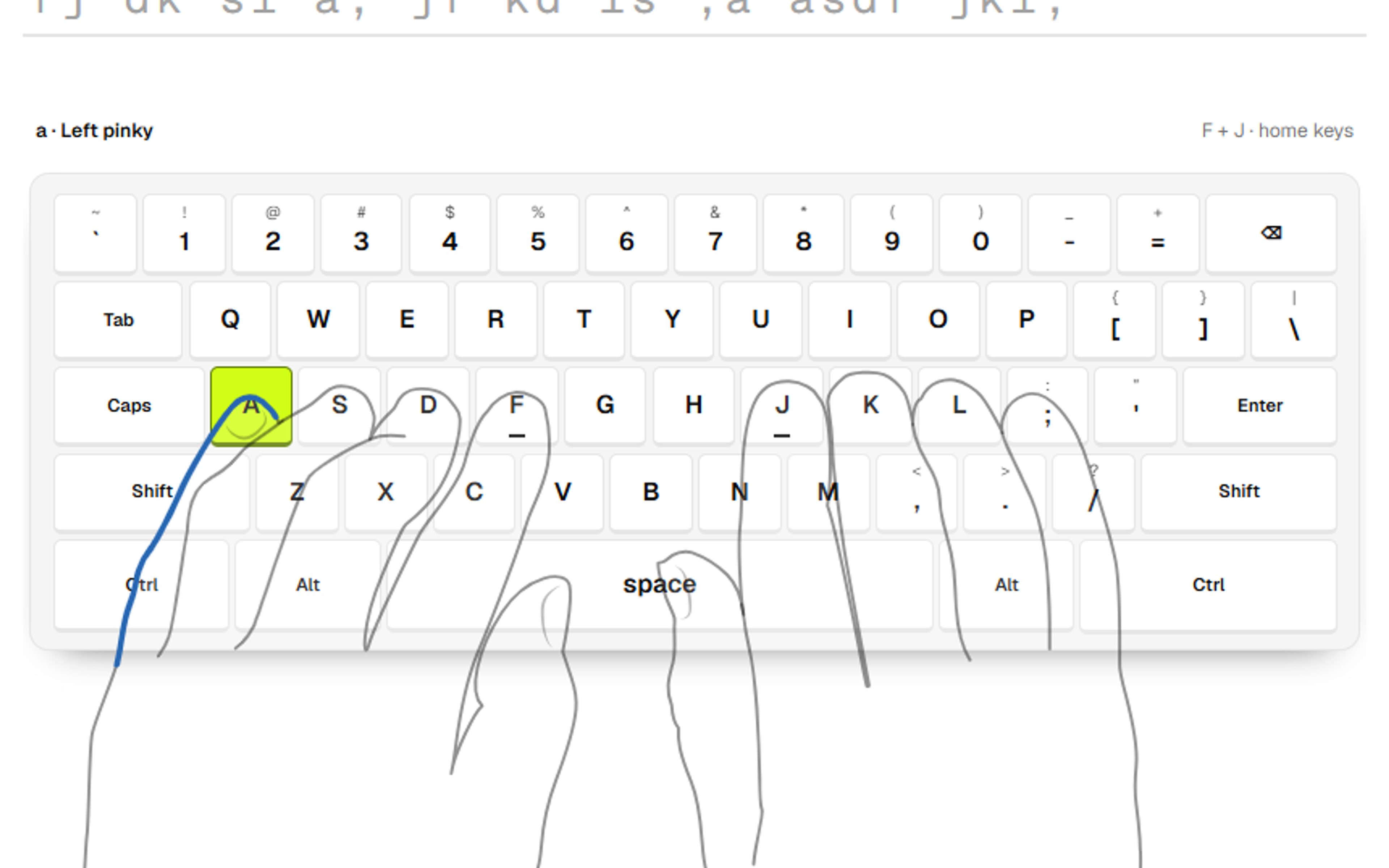
Rest your left fingers on A, S, D and F and your right fingers on J, K, L and the semicolon key. Your thumbs rest on the space bar. This is the home row. Most keyboards have a small raised bump on F and J so your index fingers can find home without looking.

Each finger covers the keys in its own column and returns to its home key afterwards. Your index fingers cover two columns each, so they work hardest. Your little fingers cover the outer keys, including Shift, Enter and Backspace. Our next post goes through every finger in detail: home row and finger zones.
| Option | Good fit | Trade-off |
|---|---|---|
| Index fingers | Left: R T F G V B. Right: Y U H J N M. | They cover two columns each, so learn these carefully. |
| Middle fingers | Left: E D C. Right: I K and the comma. | Reach straight up or down from the home key. |
| Ring fingers | Left: W S X. Right: O L and the full stop. | Often the least agile, so give them slow, accurate practice. |
| Little fingers | Left: Q A Z. Right: P, semicolon and slash, plus Shift, Enter and Backspace. | Keep the wrist relaxed instead of twisting the hand. |
How to practise
Work in short, frequent sessions of about 5 to 10 minutes rather than one long one. Start with the home row only, add keys gradually, and move to real words as soon as you know enough letters to spell them. Keep your eyes off the keyboard. If you cannot resist looking, cover your hands with a sheet of paper held above the keys.
Put accuracy first. If you are making many mistakes, slow down until you are not. Speed follows once the movements become automatic. Sit upright with relaxed wrists, and stop and adjust your setup if anything hurts.
Track more than one number. A useful measure is net speed, which is your typing speed reduced by your accuracy, so a fast but sloppy run does not look better than a slower accurate one. Notice which pairs of keys trip you up and practise those pairs, not the whole alphabet again.
What we are building in Tutype
We are building Tutype, a touch typing app, and plan to launch it soon. It is in development, so this section describes how it is designed to work. We do not have learner results to publish yet.
Lessons are short and introduce a small number of keys at a time, never showing a letter you have not been taught. An on-screen keyboard and a pair of hands show which finger to use. As you improve, that guidance fades, from hands to highlighted keys to the plain keyboard, so you do not depend on it.
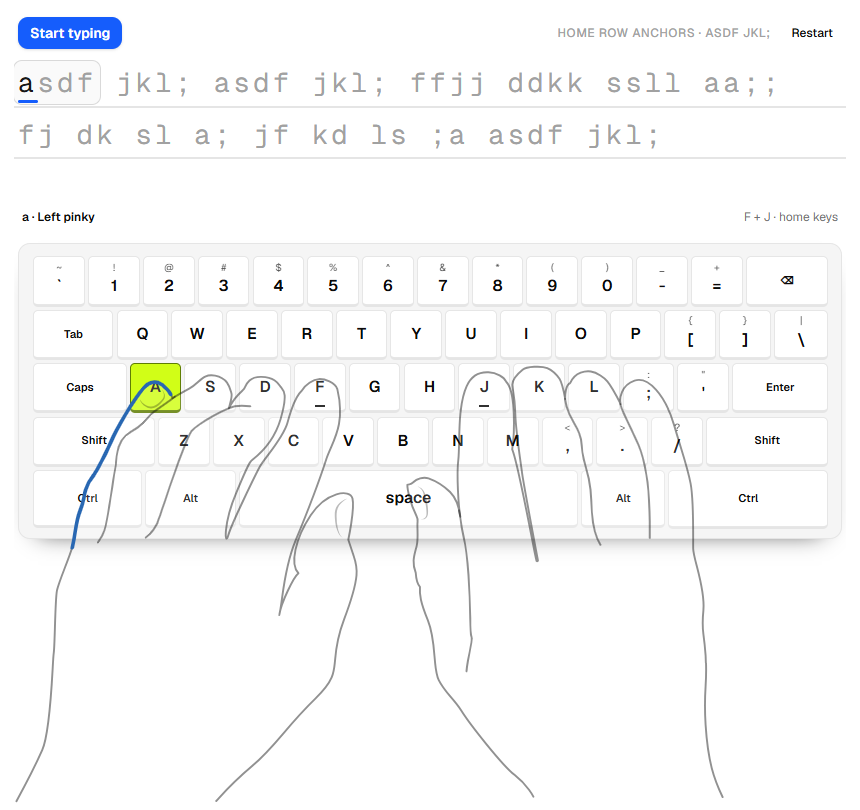
After each run, the app is meant to tell you what to practise next, such as the key pairs you missed most, and to build a short review drill from them. A placement test lets people who already type skip the basics. There are two courses, one in English and one in Kiswahili, and a teacher view for classrooms where students join with a class code and a PIN.
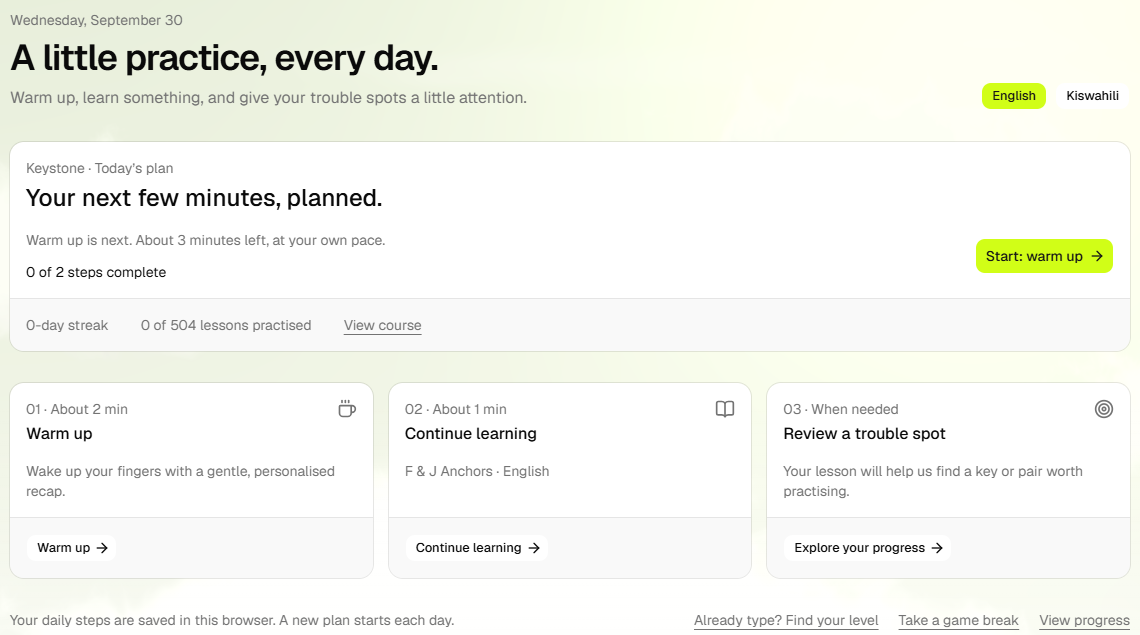
None of this is a promise that anyone will type faster by a set date. People learn at different speeds, and the research above suggests technique and consistency matter more than any single method. If you would like to hear when Tutype launches, or want to talk about using it in a school, get in touch with us.
Need an app or learning platform built?
Tutype is an example of the kind of product we build: a web application with accounts, saved progress, a teacher view and an offline-friendly practice screen. If you are planning something similar, see our web development service or tell us what you want to build.
How we prepared this guide
Written by Alphonix. The research claims come from one source we read: Aalto University's news summary of its 2016 study of 30 typists. Our own notes on keyboard-instruction research are summarised in general terms and cited to nothing. Tutype is a product we are building and have not launched, so it is described as planned and not as a tested result, and we publish no learner outcomes. The finger-zone diagram was drawn by Alphonix; the two app screenshots are from our development build.
Facts reviewed